|
My Discs are not reading
Disc 1 is required to start the program
Sounds Settings
My screensaver runs too fast
Exporting List as text files
Blank home page and Internet Explorer 7
Windows Vista
Menu buttons don't work
Where to copy UserData
Roberts' Multimedia discs not reading
There are two possible reasons for the disc not reading in your CD drive. Either
the disc is faulty, or the drive has limited read capabilities. We find that new
laptops and older drives often have this problem. We recommend that you check
the disc in another CD drive to confirm this. You can also try cleaning the disc
with soapy water, and cleaning the CD drive laser with a proprietary CD-ROM
drive cleaner.
Alternatively, we have managed to produce special installation discs of the
Roberts' Multimedia program for users experiencing difficulty installing. Please
email your CD Serial, postal address, and tell us which discs you are having
problems with, and we will reply with full instructions. There may be a charge
to replace your discs
Disc 1 is required to start the program
Disc 1 (Program disc) is always required in the
CD-Rom drive to run the program! This is part of the copy-protection of
the Roberts' Multimedia Version 3 program.
Sounds Settings
The complete, high quality collection of sounds is one of
the major features of Roberts, so we have spend a significant amount of time on
this portion of the program. As a result, any problem with the sound is almost
certainly a issue with your PC, even if your CD player works fine (they use
different systems on the computer.)
If you do not get any sound when you are in the program:
1) Check that there is not a red cross over the Roberts sound button on the top
right of your screen.
2) Check that your Windows sound is not muted by clicking on the speaker next to
the Windows clock on your task bar, make sure it has volume.
3) Double-click the speaker icon next to the Windows clock, and make sure the
slider marked 'Wave' is set to a high enough level and not muted.
If none of these measures help, try downloading the latest
version of Windows Media Player from the Microsoft website:
www.microsoft.com/windows/windowsmedia
Screensaver Speed
If the pictures on your screensaver do not slow to the user specified settings,
even though you have adjusted the Windows screensaver settings, there is a screensaver
update that has been included in the latest Version 3.3 update.
Exporting Lists a text files
To export your list to a
text file you can use in other programs, you can do the following. Go to your
personal list in the program, then select the following from the menu bar:
in/out -> Export Text.
Here you can select which
items you wish to export. Select items in 'Available Report Items' and click
'Add ->' to add them to the export, and select items in 'Items on Report' and
click ' <- Remove' to take them out. If you plan on re-importing the list, we
recommend you export with the World number and without printing the header or
diary.
Click 'Save List' to
select a filename and complete the export.
Please note that we DO
NOT recommend this as a method for backing up your lists. The text export is
meant for use outside the program. If you want to back up your lists, please use
the method outlined here:
Transferring or Backing up Bird Lists and
Notes
Blank home page and Internet Explorer 7
The blank home page has been introduced by the
recent Microsoft update to Internet Explorer 7. We use Internet Explorer to
display an animated home page, and IE7 introduced a bug that effectively
disabled our front page. We have released an update for the program that fixes
the problem. You can download the update here:
http://www.sabirding.co.za/rmm/v3ud.htm#Roberts%20Multimedia:%20Version%203%20Updates
An alternative is to change the program settings to switch off the animated home
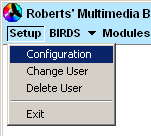
page. Go to Setup (top left of the menu bar), select Configuration:
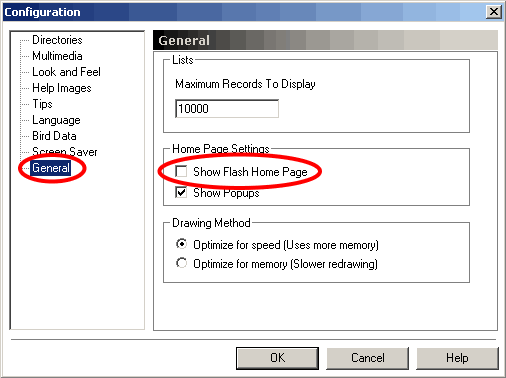
Select General, then uncheck "Show Flash Home Page".
Menu Buttons don't work
Please install the Windows Vista patch. It can be downloaded
http://www.sabirding.co.za/vista.htm
Where to save the Folder
"UserData"
Windows Vista has a new directory structure. It saves the user
information in a Virtual Store.
Go to the folder C:\Users\"your username"\AppData\Local\VirtualStore\Program
Files\RobertsMM3.
Unfortunately, Windows may hide this folder from you. You will need to manually
copy the folder name directly into the address bar in Windows Explorer.
Copy the folder UserData into this Folder.
|

 Software Support


