1. Program Screens
The program screens are designed for viewing at 800x600 screen resolution,
and can be enlarged to 1024x768. The screens
are designed with the following common areas;
- a menu bar
- permanent bird list panel on the left hand side
- text box, list or filter selection panel on the right
hand side
- central display panel for illustrations and module operations.
 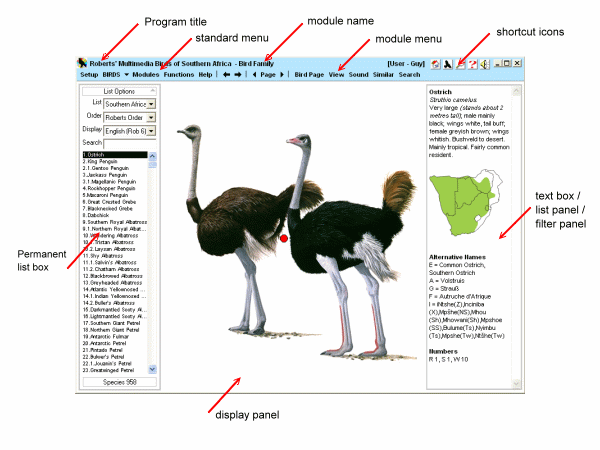
2. The menu bar has the
following common areas;

- program icon and title -
Roberts' Multimedia Birds of Southern Africa.
- current module name -
Bird Page.
- Name of currently selected user - [User - A
Birder]. Can be changed in the Setup menu.
- short-cut icons -

- standard program menu

- current module menu

3. The standard program menu has the following options;
- Setup - user options
for configuring the program
- BIRDS - the frequently-accessed
birds module
- v - the vertical
arrow opens an alphabetical list of bird families.
- Modules - opens a
menu of available program modules
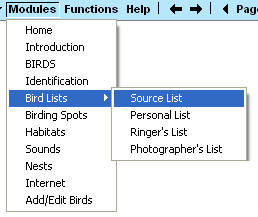
- Functions - opens
a menu of standard Windows functions
Copy - highlight any text and select copy
Print - print the selected text (only in the Introduction)
Search - opens the Search function.
- Help - opens the
Help module options.
-
 windows "back" and "forward" arrows to retrace your steps.
-
 page back or forward through the program pages (bird pages, family pages, and ID
module).
page back or forward through the program pages (bird pages, family pages, and ID
module).
4. The Short Cut icons
-
 Opens the home page.
-
 Opens the bird page for the bird selected in the main list.
-
 Opens the search module.
-
 Opens the Help module to the context page.
-
 Sound ON/OFF toggle.
-
 Windows minimize, maximize, close.
5. The Current Module Menu changes with the applicable
module. These are found to the right of the
button.
6.
General program functions;
- Bird list. The program runs off the bird list
as displayed in the list box. The selected bird list is carried as you move around
the program. To see all the birds you need to select the full Southern Africa list.
If you select a bird from a "filtered" list, it cannot be displayed. The
program will ask you if you wish to change back to the Southern Africa list.
- Photos. Double-click to enlarge illustrations
and photos. Left and right arrows to tab between photos. With minimal install, if
you are viewing from the video disc, a photo-box [x] will indicate a photo is available.
Re-insert disc 1 and double-click on the photo-box [x] to view.
- Video. SIngle-click on the video icon to view,
or select Video-Play from the menu. Double-click on the video icon to enlarge to
full screen. Esc to close. Note that with minimal install, you will be required
to swop discs to view video. Most videos (660 species) are on disc 2, with an additional
17 species on disc 1. If you re-insert disc 1, double-click on the video icon to
view (not the play button).
- Sounds and Videos can be set to play once, or
to play repeatedly (loop). You can choose a default under Setup-Configuration, or
on the Bird Page.
- the pop-up help and tip boxes can be switched
off when you are familiar with them. You can switch them back on in the Setup -
Configuration.
- the List Options box can be opened and closed.
- the right-hand index box can be closed in some
modules to provide a larger viewing area.
-
The program can be maximized to full screen on a 1024 x768 screen. This will show
larger family pages.
|